
Pysite
A Super Simple Static Site Creator written in Python.
Requirements
- Python 3.14+
- These packages
- markdown
- frontmatter
- jinja2
- watchdog
- Terminal and Code Editor (VS Code)
What it does
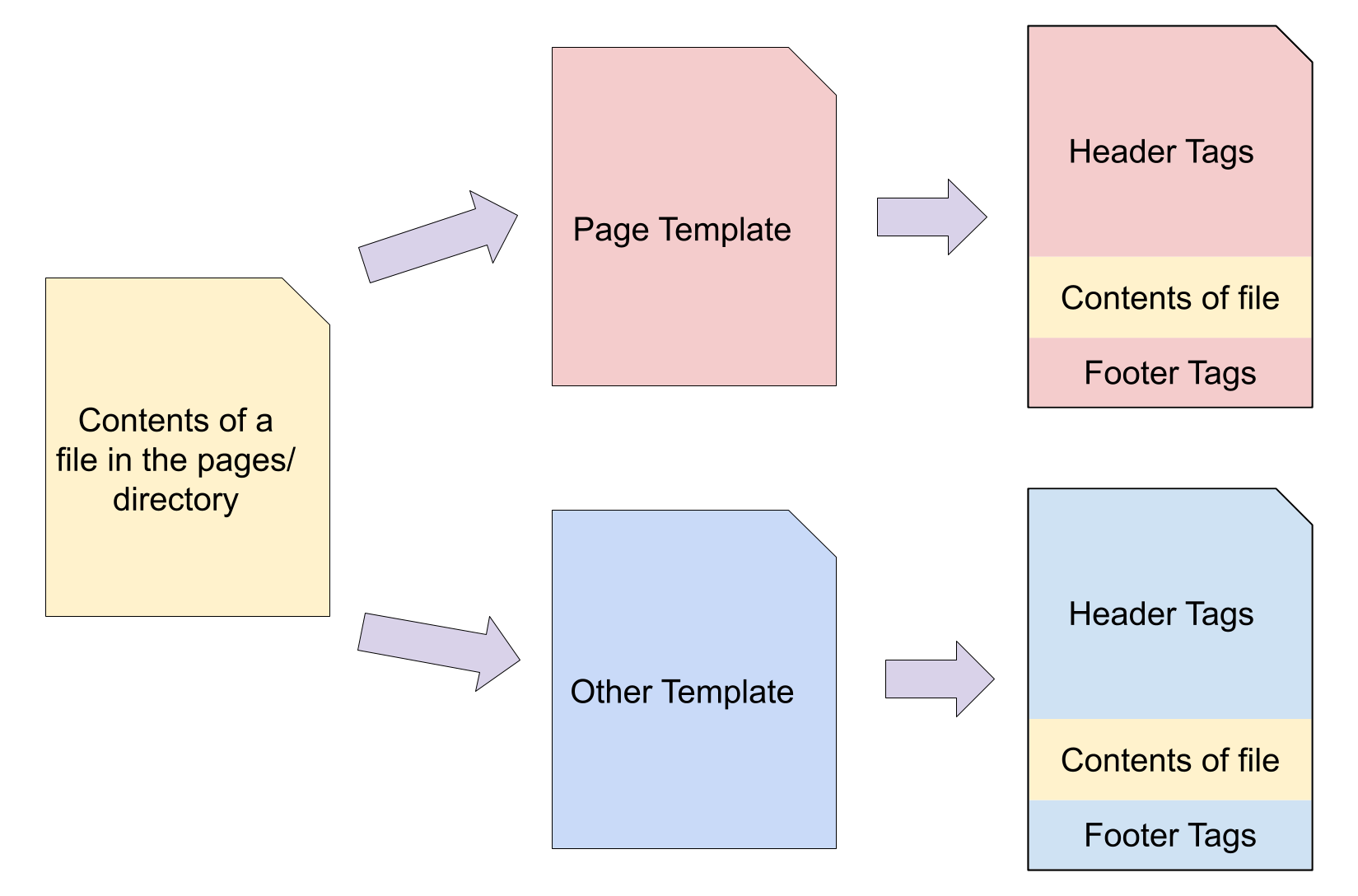
At the very basics, this script will take every HTML and Markdown file in a given folder and insert the contents of that file into a template, creating a new HTML file.
Each HTML or Markdown file from the selected folder will now have the same header (title, stylesheet, navigation) and footer content, which can be edited from the template file.
Installation
-
Copy the
pysite.py,server.py, andrequirements.txtfiles into your project folder. -
Create a Python Virtual Environment
python -m venv .venv
- Activate the environment
source .venv/bin/activate
- Install modules.
pip install -r requirements.txt
Create need folders and files
Create the following folders and files in your project folder:
- template/
- base.html
- page.html
- post.html
- posts-index.html
- pages/
- public/
- settings.yml
The settings.yml file should have the following content:
---
template_dir: 'template'
public_dir: 'public'
pages_dir: 'pages'
output_dir: 'docs'      # use 'docs' to integrate with GitHub Pages
default_template: 'page'
posts_dir: 'posts'
post_index_template: 'posts-index.html'
base_url: '/pysite'     # CHANGE to the subdirectory of your site
---
See below for contents of the template files.
Project Structure
Folders
The names of these folders can be changed in the settings.yml file.
Folders: Top-level folders
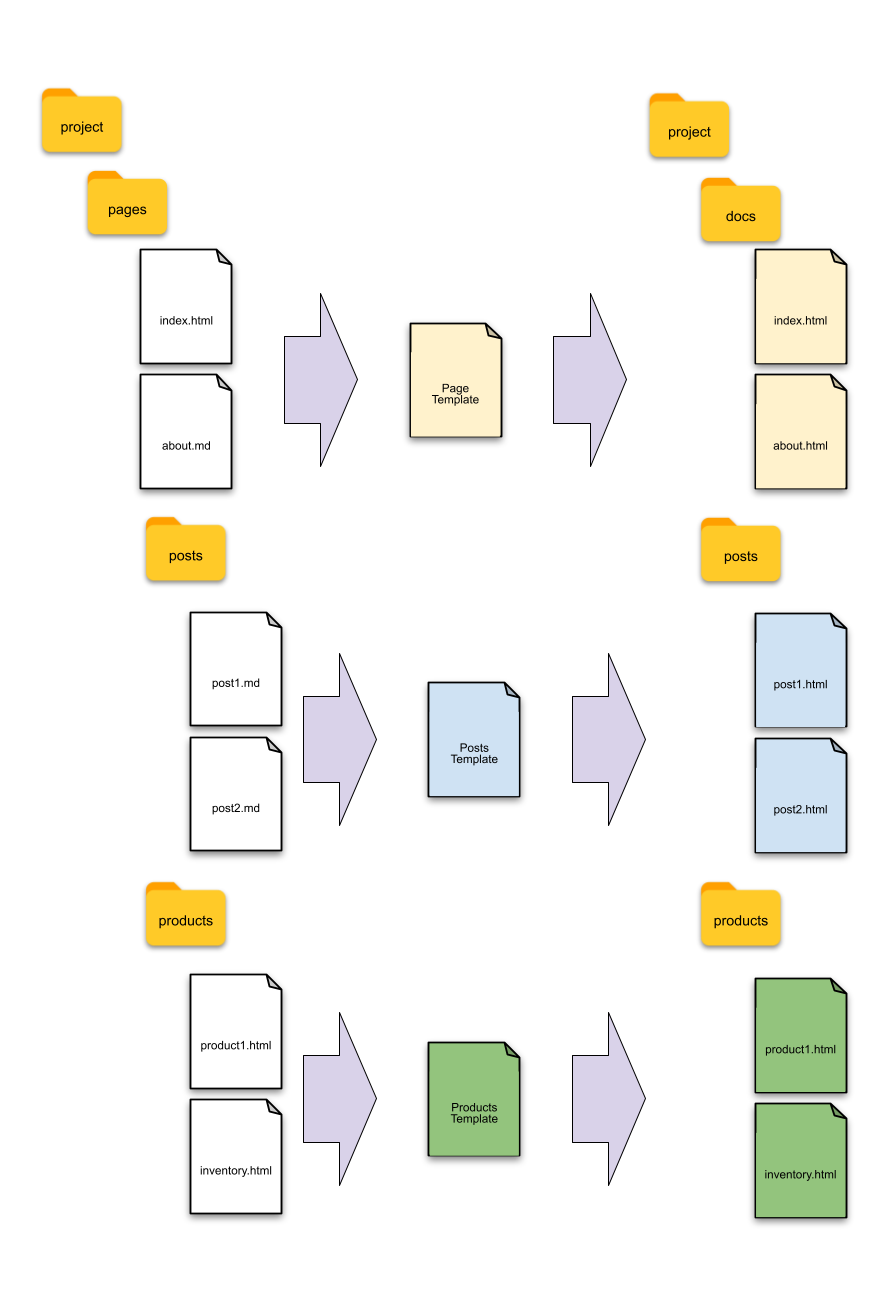
Any file or folder at the top level of the project (the same level as the pages, public and template folders) will be ignored. Any file in the pages folder will be converted into an HTML file and placed in a folder or sub-folder in the top-level of the output folder. That is to say, any files and folders in the pages folder will be recreated exactly in the static output folder, but all files will have the appropriate template applied to them, and they will be converted to HTML files.
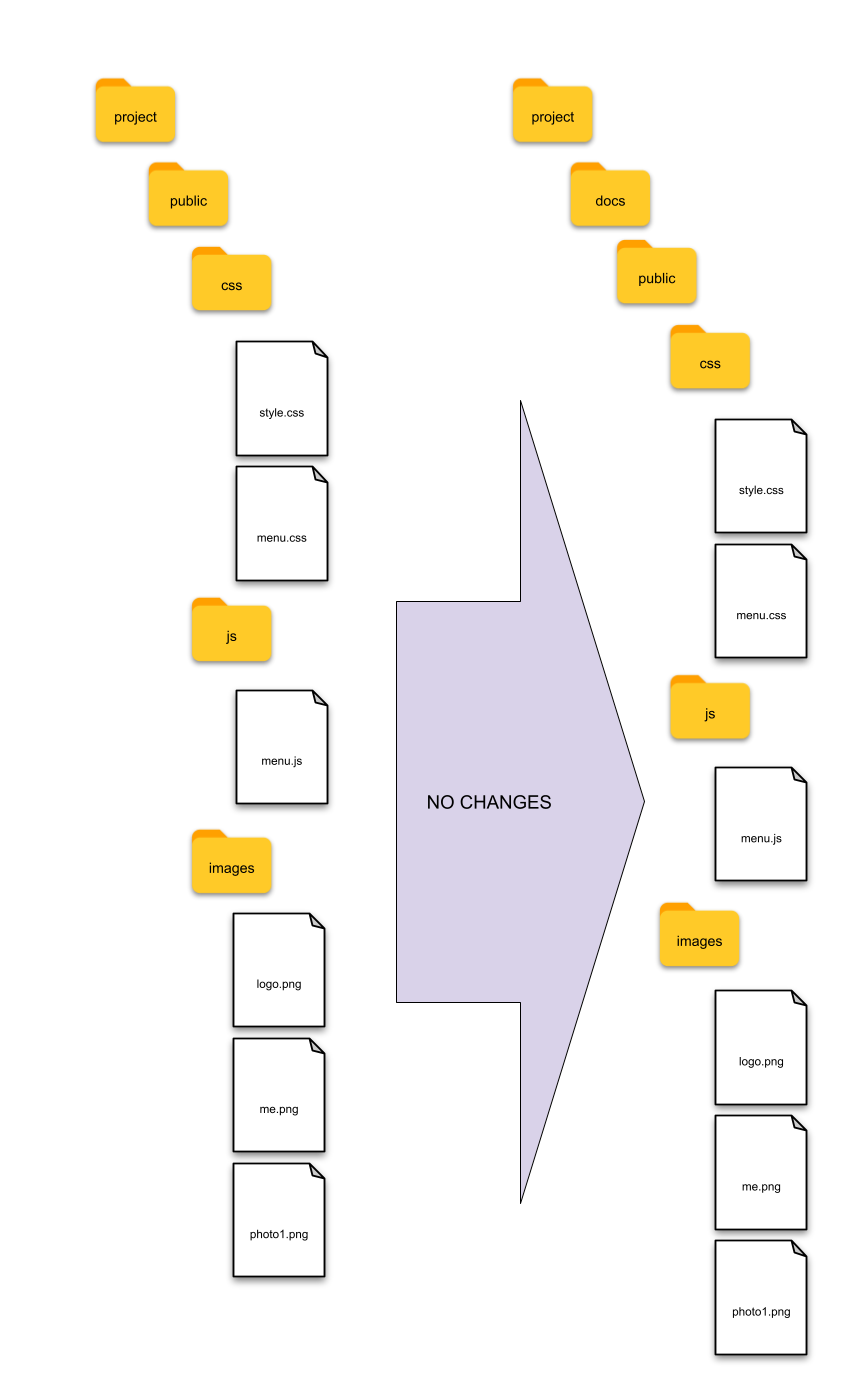
Any files and folders in the public folder will be copied exactly without alteration into the static output folder, including the public folder.
Folder: template
Inside the template folder, create any number of template files. For example:
- template/
base.htmlis the base template. This contains the basic head and footer tags. Other template files can use this as the base for their template. This allows all template files to use the same head and footer.page.htmlIs a page template. This file contains all of the HTML, with a placeholder, to create a 'page' page of the website.post.htmlIs a post template. This file contains all of the HTML, with a placeholder, to create a 'post' page of the website.
Other template files can be created here. The base.html file should contain the basic HTML structure (!DOCTYPE, <html>, <title>, <link>, <meta>, <body>, <main>, etc... and their corresponding closing tags) to create a page of the website.
An HTML or Markdown file selects which template to use in the YAML frontmatter of the file:
---
template: page
---
Folder: pages
These files contain the content of the webpage.
HTML and Markdown files inside the pages folder will be turned into HTML files to be served. Each file's content will inserted into the placeholder section of the specified template file.
The combined HTML file is named the same as the file name in the pages folder. All files and folders in the pages folder will be recreated in the docs folder with paths, folders and file names preserved.
Therefore, a file at pages/about/me.md will be turned into docs/about/me.html and will be accessible at the URL https://website.com/about/me.html.
Folder: pages/posts
To have a blog, create a posts folder inside the pages folder. Every file in the posts folder should have YAML with at least the date, title, and template fields. This is required for automatically creating the 'previous' and 'next' post links.
If the pages/posts folder exists and a posts index template file exists, then a posts index page is automatically created. Make sure to create a template file for the post index page and set the name in the settings.yml file. The default filename is posts-index.html.
Folder: public
The files and folders in the public/ folder will be copied recursively to the docs folder without alteration.
This is where you put the images, css and Javascript. Suggested file structure:
- public/
- css/
- style.css
- images/
- logo.png
- picture1.jpg
- js/
- menu.js
- files/
- ExampleData.csv
- GreatHandout.pdf
Access the files in these folders in your HTML and Markdown as absolute paths:
The file public/images/logo.png is accessed like <img alt="alt description" src="{{base_url}}/public/images/logo.png"> for HTML and  for Markdown.
The CSS file can be accessed in the template file template/base.html file like so: <link rel="stylesheet" href="{{base_url}}/public/css/style.css">
See base_url for more information on the use of {{base_url}}.
Folders: docs
After the pysite.py or server.py script is executed (by running python pysite.py or python server.py in the terminal), a docs folder is created and populated with files from the pages and public folders. All of the files in the pages folder will have a specific template applied to them and converted to an HTML file (if not already), before being copied into it's respective folder in the docs folder. The docs folder is deleted and recreated every time the pysite.py or server.py script is executed.
The docs folder can be copied to a web host to be served as the static website.
If using GitHub Pages, select the docs folder as the folder to build the site from.
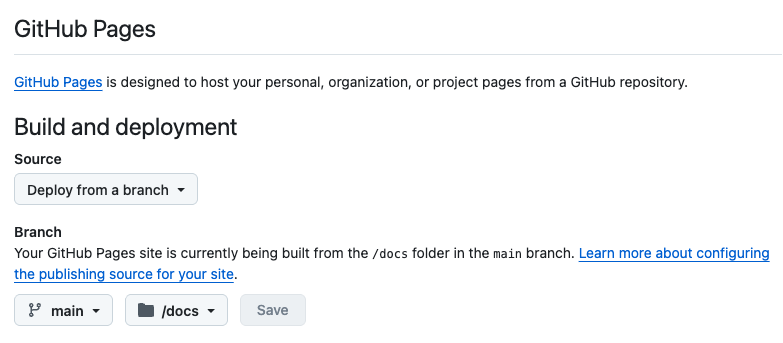
The name of the static files output folder can be changed in the settings.yml file.
Files
Files in the top-level folder
All files in the top-level folder of the project (the same level as the pages, public and template folders) are ignored.
Files in the template folder
Any file in the template folder is considered a template. It can be a full HTML file with
{{ content }}
placed where the content of files from the pages directory should go.
A simple pages template might look like:
<!DOCTYPE html>
<html lang="en">
<head>
    <meta charset="UTF-8">
    <meta name="viewport" content="width=device-width, initial-scale=1.0">
    <title>My Groovy Website</title>
    <link rel="stylesheet" href="{{base_url}}/public/css/style.css">
</head>
<body>
    <div class="logo">
        <img alt="My logo" src="{{base_url}}/public/images/logo.webp">
    </div>
    <header>
      <nav>
        <a href="{{base_url}}/">HOME</a>
        <a href="{{base_url}}/posts">Blog</a>
        <a href="{{base_url}}/about">About</a>
      </nav>
    </header>
    <main>

        {{ content }}

    </main>
</body>
</html>
See base_url for more information on the use of {{base_url}}.
At least one template file must exist. The default is to look for a template/page.html file. This setting can be changed in settings.yml.
DEFAULT_TEMPLATE = 'page'
Template Hierarchy
Jinja Template Hierarchy is enabled so creating a base template that other templates pull from is possible. This makes it easy to have an HTML head and footer section that is the same for all templates.
A simple base template could be:
[template/base.html]
<!DOCTYPE html>
<html lang="en">
<head>
    <meta charset="UTF-8">
    <meta name="viewport" content="width=device-width, initial-scale=1.0">
    <title>{% block title %}{% endblock %}</title>
    <link rel="stylesheet" href="{{base_url}}/public/css/style.css">
</head>
<body>

    {% block content %}{% endblock %}

</body>
</html>
The page template would then look like this:
[template/page.html]
{% extends "base.html" %}
{% block title %}PySite: Python Based Super Simple Static Site Generator{% endblock %}
{% block content %}
    <div class="logo">
        <img alt="A python driving a Chevy Chevelle SS" src="{{base_url}}/public/images/pysite-logo.webp">
    </div>
    <main>

        {{ content }}

    </main>
{% endblock %}
When all conversion and rendering are done, the Jinja variables are converted and the base.html, page.html and the original file's content are all combined into one HTML page.
Files in the pages folder
All files in the pages folder and any sub-folders will have a template applied and then copied into the respective folder in the docs folder.
Each file can have a YAML frontmatter (even HTML files) to tell the application which template to apply. YAML frontmatter can look like this:
---
title: 'HTML page example'
author: 'Ammon Shepherd'
date: 2026-04-13 21:23:33
template: post
---
The default template is applied when no YAML or no temlpate: option is provided, except for HTML files in the pages folder without YAML frontmatter. HTML files without YAML frontmatter are copied exactly without alteration to the output folder.
Any variable in the YAML frontmatter can be used as a variable in the file and template using double curly braces and the variable name.
For example, a blog post can look like this:
---
title: 'Blog post example'
author: 'Ammon Shepherd'
date: 2026-04-13 21:23:33
template: post
---
# {{title}}
Date: {{date}}
Here's my first blog post using this way cool static site generator.
Here's a picture of Pete, my pet python!

Author: {{author}}
The post template could use the title variable like so:
<!DOCTYPE html>
<html lang="en">
<head>
    <meta charset="UTF-8">
    <meta name="viewport" content="width=device-width, initial-scale=1.0">
    <title>MySite Post: {{title}}</title>
Or like this if using template hierarchy
{% extends "base.html" %}
{% block title %}MySite Post: {{title}}{% endblock %}
Jijna2 is used for converting template variables, so any Jinja2 templating is allowed.
See base_url for more information on the use of {{base_url}}.
Files in the public folder
Any file in the public folder is copied exactly, without any alteration, into the docs/public/ folder or sub-folder. All files in the public folder are accessible directly in the URL at their respective location.
For example, a file at public/css/style.css is available at https://website.com/public/css/style.css in the browser, or at https://website.com/mysite/public/css/style.css if there is a URL subdirectory.
URL Subdirectory
To help in cases where the website is located at https://website.com/mysite/, the Jinja template variable {{base_url}} is used in template, Markdown and HTML files. Every URL reference to internal files should begin with {{base_url}}
For example, in an HTML file you can create a link to the about page stored in pages/about.html like this:
<a href="{{base_url}}/about.html">About Me</a>
The {{base_url}} is automatically converted to the specified subdirectory for your website.
By default, {{base_url}} is empty/nothing when you run the python server.py script to test the site locally without the subdirectory affecting the URL.
You will only activate the {{base_url}} ability when creating the static version of the files to send to your hosting provider.
To activate the {{base_url}} ability, run the pysite.py script like so:
python pysite.py
Usage
After your site's template(s) and files are created in the pages, public and template folders, run the following command in the terminal
python server.py
This will create the docs folder, create and convert any files and folders, and place them in the appropriate locations, then start an HTML server.
For development testing, you can view the site at http://127.0.0.1:8000
The server will notice changes to files every second and restart the server so you can refresh the browser to the latest changes.
You can transfer the files from the docs folder to your web host for static file serving glory!
GitHub Pages
If using GitHub Pages, change settings in your GitHub repo to serve files from the docs folder. Remember to set the BASE_URL variable in settings.yml. When your site is ready, run
python pysite.py
to create the files with the appropriate base URL. Then you can commit the changes and push them to your GitHub repo. GitHub will automatically apply the changes. It usually takes about 5 minutes for the changes to propagate to the website.
Example Pages
Example About Page - A stand-alone HTML file without any rendering or conversion